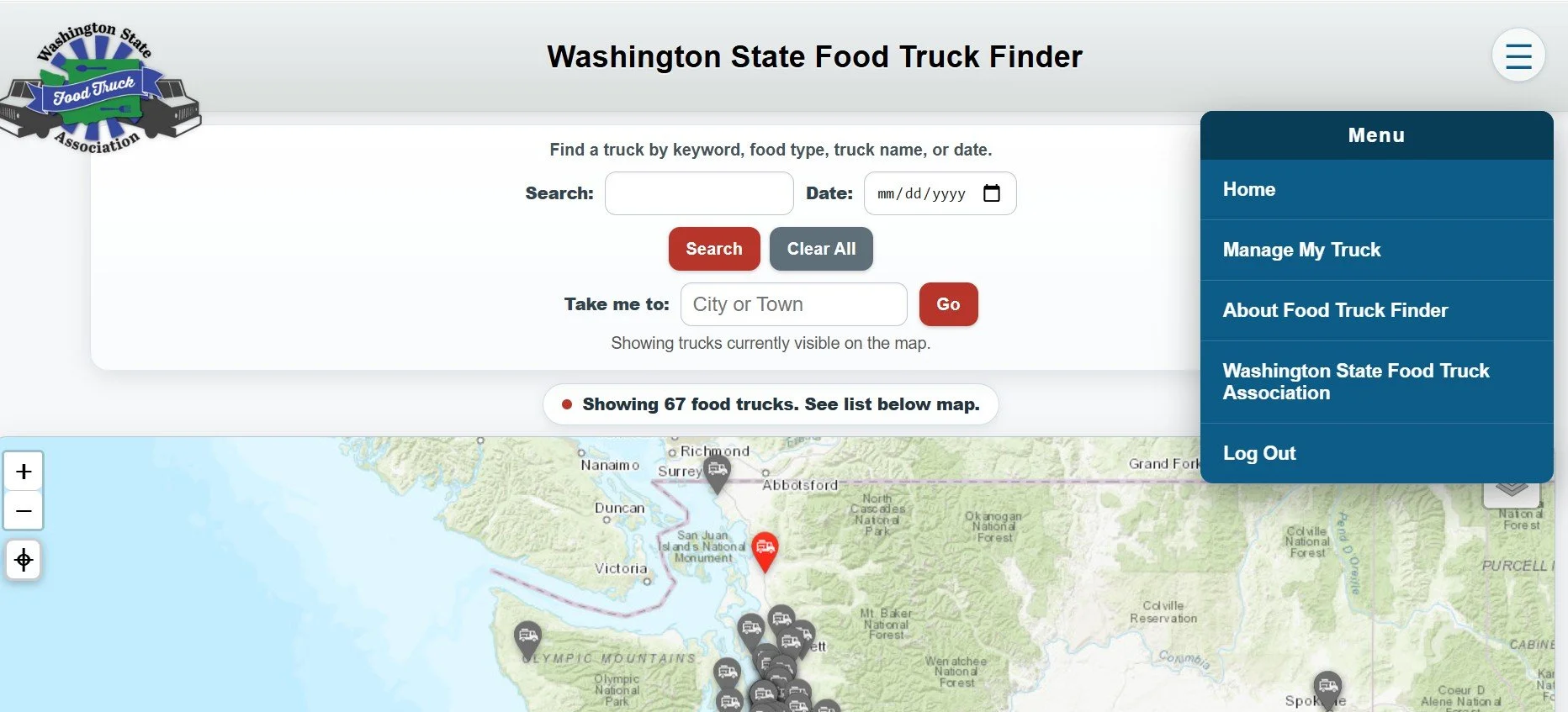
The WSFTA Food Truck Finder was created to support Washington's mobile food businesses by making it easier for customers to discover local food trucks and increase vendor visibility. This platform can be used on a laptop or a mobile device. Trucks can create a profile and enter upcoming locations, photos, menu, website link, phone, email, and social media links. Follow the “setup” steps below.
Setup
Step 1. Use the link here to establish a username: We will only approve existing members. (Example username: WSFTA_mandysue)
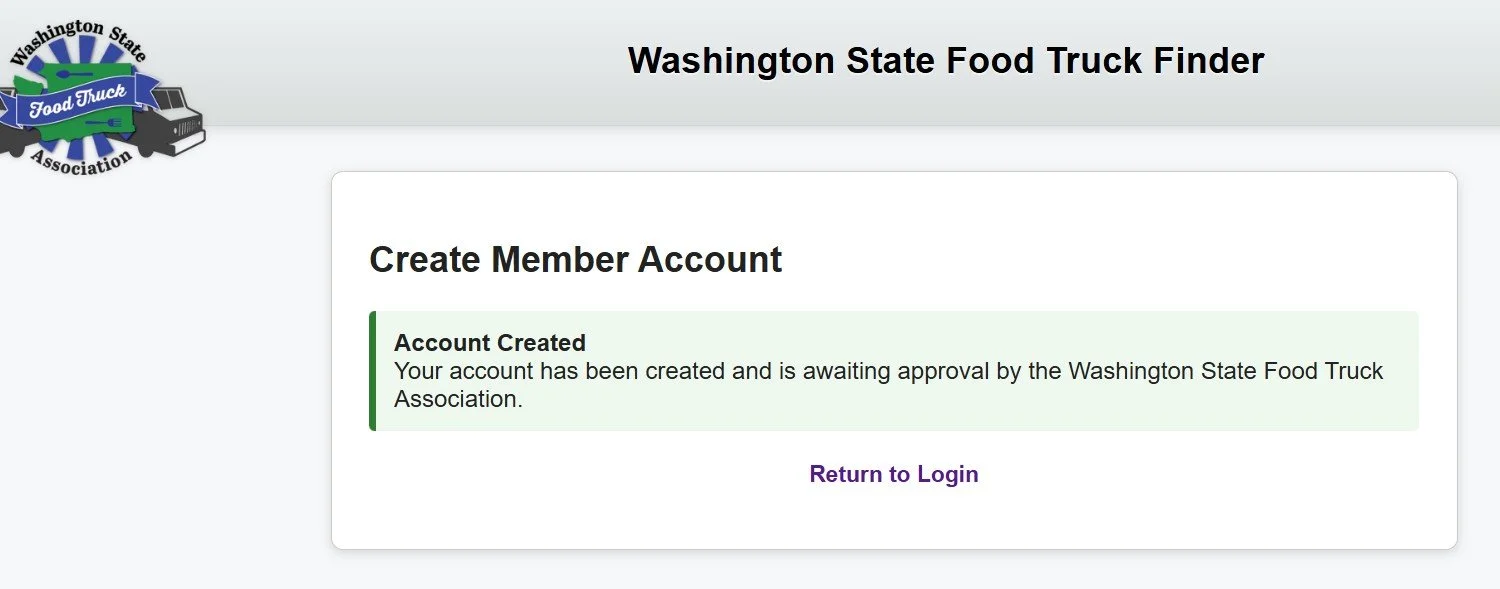
Go to “Manage My Truck” menu option from the upper right corner. Then select: Don’t have an account? Create one here. The WSFTA will approve your new account and you will receive an email from us with this approval and a link to log in and create a user profile.
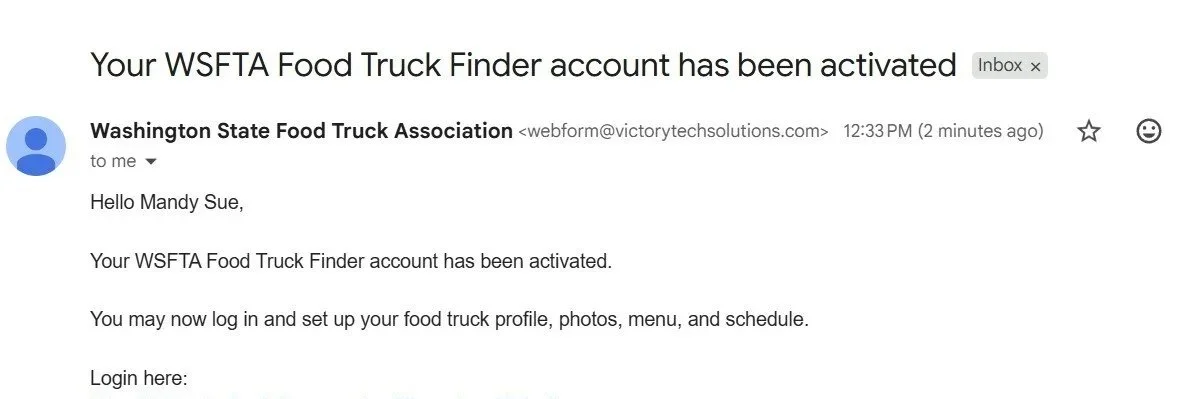
Step 2. Once you receive this email approval and login for the first time, you can go through the profile tabs and enter all your food truck business information to include: your homebase or commissary address (not required), a description of your truck and menu, a link (URL) to any online ordering service you want your customers to be aware of, your social media, photos, etc.
Be sure to hit the “save” button at the bottom. You can upload a PDF version of your menu or add a link to a website menu page.
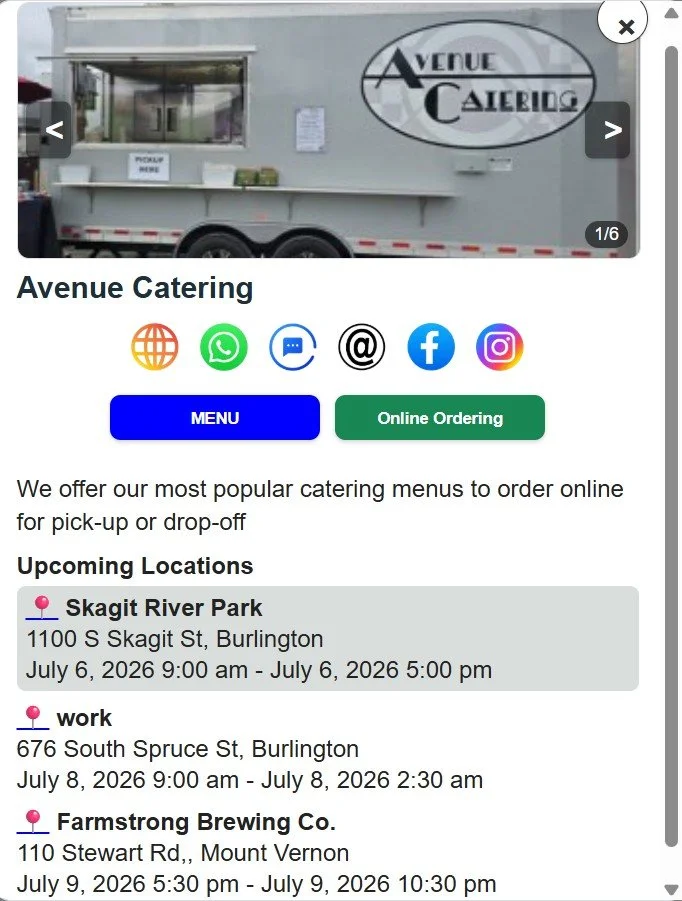
Step 3. If you want to post your schedule of locations (that can include any daily vending and special events), go to the “schedule” profile tab. For most events, the Start and End dates will be the same. * Use a different End date only for overnight events (for example, 8:00 PM to 2:00 AM). If your truck will be at the same location for multiple consecutive days, click “Add Another Day”. Each day is saved as its own schedule entry so you can easily adjust the hours later. (Maximum 7 days at one time.)
Be sure to hit “save event” at bottom of screen.
You can always go back and edit the location, days and/or times and/or check the location on the map by selecting “check pin”.
Tips:
The map will show a truck at its next upcoming event whenever one is scheduled, as long as the truck is marked “Active”. If there aren't any upcoming events, it will simply show the truck at its home/commissary location instead. Your profile will only appear on the map if you have entered a location to be mapped. A truck must have at least some location data (such as a city or address) in order to appear on the map.
Vendors can temporarily deactivate their own profile—for example, during an off-season or if they simply don't want to appear in searches for a period of time.
Install as an App - on many mobile devices you'll be prompted to install the site as an app. You can install it or simply dismiss the prompt—it works either way. If you don't receive the prompt, you can still use your browser's standard Add to Home Screen option. This simply creates an app-like shortcut using the WSFTA logo.
Account Registration & Password Recovery - Members can register their own accounts, and there's also a "Forgot Password" feature that allows you to reset your password using your email address.
Usernames - Users choose their own username. To help avoid duplicates, the system automatically suggests one using the first word of the company name as a prefix. For example, BigBurgers_tommy.
Truck Profile - Once activated, members can complete their truck profile, upload a primary truck photo, upload a PDF menu, and add additional photos.
Scheduling - Members can create and manage their operating schedule through the scheduling interface.
Multiple Events - Up to seven events can be created at one time. There isn't an overall limit—seven is simply the number that can be entered in a single submission.
Check Pin - After saving an event, you'll see a Check Pin button. This opens an interactive map centered on the address you entered. From there you can move both the map and the marker to place the truck in its exact location—even using satellite imagery if you'd like. When you click Save Pin, the system stores the precise latitude and longitude used by the public map. Initially, the system estimates the location from the street address, which is why the Check Pin feature exists to fine-tune it.
